

Feature guides
Colour swatches
Show product options as buttons, dropdowns, colour circles or small product photos, on the product page, product cards and quick add.
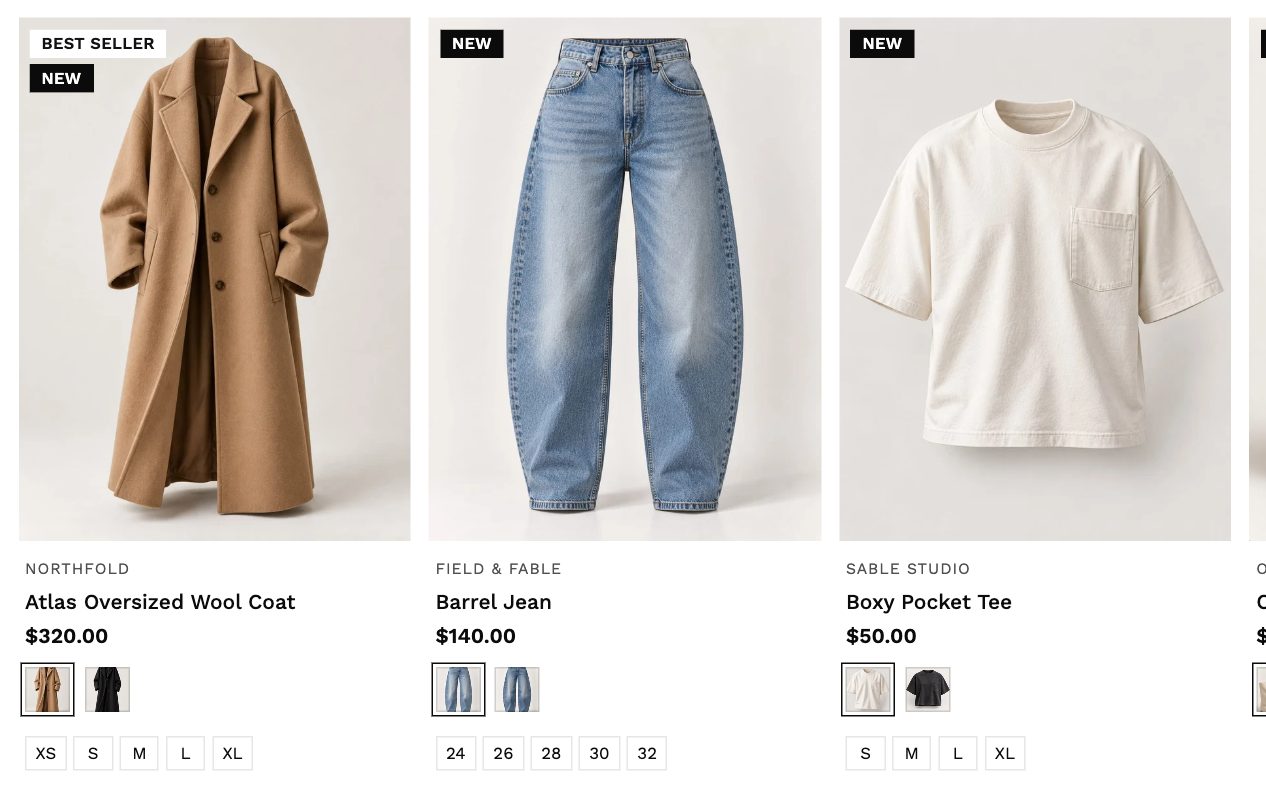
Choose a style per option
Go to Theme settings → Product variants.
- Default variant option style applies to every option.
- Under Style by option name, override up to three options by name. For example:
| Variant option name | Style |
|---|---|
| Color | Image swatch |
| Size | Simple buttons |
| Flavour | Dropdown |
The name must match the option name on your products (Color, Colour, Size and so on).
Where swatch colours and images come from
For Color swatch and Image swatch, the theme uses the first of these it finds for each value:
- The swatch image set on the option value in the product's admin page.
- The swatch colour set on the option value.
- The variant's own photo, so each swatch shows the product in that colour.
- The value's name read as a colour: simple names like Black, Navy or Red work with no setup.
Use Image swatch and give every variant its own photo. Swatches then show the real product in each colour, with nothing else to set up.
On product cards
Under Theme settings → Product card → Swatches and sizes you can show swatches and size options on every card, choose their size and shape, and limit how many show before a +3 link.
Colour filters
Collection filters can show colours as swatches too. See Collection filters.