

Feature guides
Mega menus
Turn a top-level menu item into a large panel with columns of links, collection images, featured products or a promotional banner.
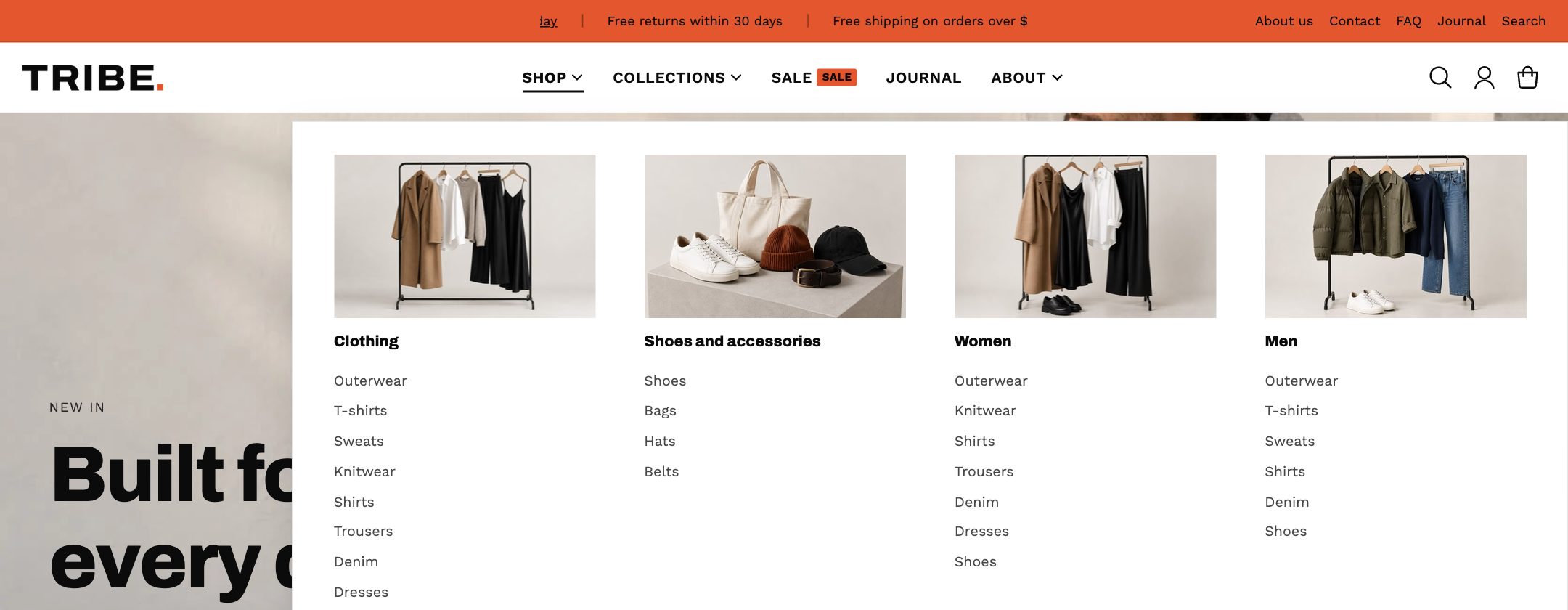
1. Build the menu structure
In admin, go to Content → Menus and open your main menu.
- Top level: the items in the header (for example Shop, Collections, Sale).
- Second level: column headings inside the panel (for example Clothing, Shoes).
- Third level: the links under each heading.
Any top-level item with children shows a simple dropdown by default.
2. Add a mega menu block
- In the theme editor, open Header and click Add block → Mega menu.
- In For item, type the top-level menu item's name exactly, for example
Shop. - Choose a Layout:
- Links only: columns of links.
- Links with collection images: each column gets an image from the collection it links to.
- Banner: your columns of links beside a promotional image with a title and button.
- Dropdown list with image: a single list of links beside a picture.
- Products, Collections or Blog posts: cards that you choose under Content sources.
- Custom HTML: your own content.
- Choose a Container: the header's width, or the full width of the screen.
Images
Column images come from each linked collection's image (or its first product). The theme crops them to the shape you choose under Column images, without losing sharpness, so one landscape collection image works for every shape.
The banner shows your image at its own shape. Text can sit below the image or over it.
Menu highlights and badges
Add a Menu highlight block to draw attention to one item:
- A badge such as New, Hot or Deals, in the corner of the item or beside it.
- A hand-drawn mark such as an underline or circle, with an optional draw-in animation.
Header button
The Button block adds a call to action beside the header icons, for example Shop the edit or Build a box. It can have a gentle attention effect.
Five to seven top-level items, and no more than about eight links per column, keeps a mega menu easy to use.