

Feature guides
Cart and free shipping
Choose what happens when a shopper adds to cart, show upsells, and motivate bigger orders with a free shipping progress bar.
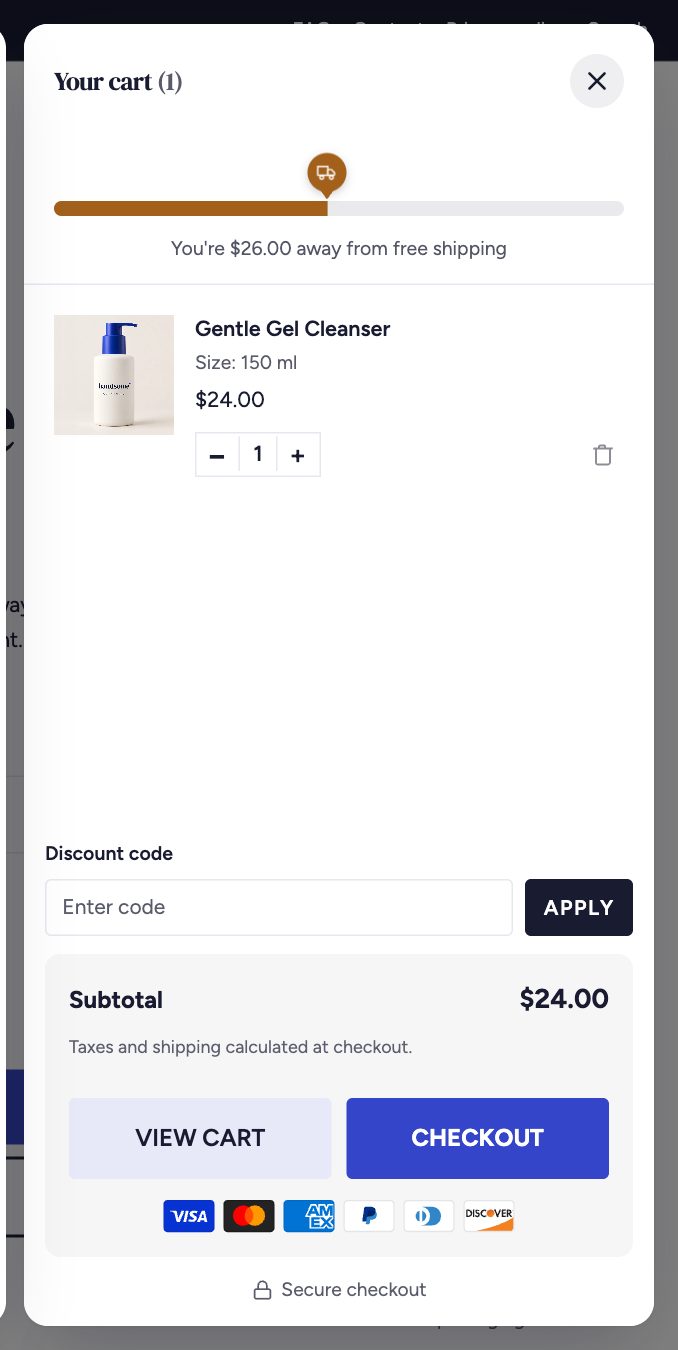
After adding to cart
Go to Theme settings → Cart drawer → After adding to cart. The same choice applies to every Add to cart button in the store.
| Option | Best for |
|---|---|
| Open cart drawer | Most stores. Shoppers see their cart and upsells straight away, then keep shopping. |
| Show confirmation message | Stores where shoppers usually buy several items in one visit. |
| Go to cart page | Simple stores, or when you rely on the cart page's extras. |
Upsells in the cart
Turn on Show upsells section and choose an Upsells collection such as Add-ons or Bestsellers. Leave the collection empty to show the complementary products you set up in Search & Discovery.
Free shipping progress bar
- Turn on Show free shipping progress bar.
- Enter your Free shipping threshold in your store's currency, for example
100. - Edit the Progress message, keeping
{amount}where the remaining amount should appear, for example You're {amount} away from free shipping. - Edit the Success message, for example You've unlocked free shipping!
The threshold is converted automatically for shoppers paying in other currencies.
The bar only shows progress. Create the actual free shipping rate in Settings → Shipping and delivery with the same minimum order value.
Checkout extras
In the same settings you can show a discount code field, the dynamic checkout button (Shop Pay, Apple Pay and others), payment icons and a secure checkout note.
Quick add
Under Theme settings → Product card, turn on the Add to cart button and the Quick add panel. Products with options open a small panel where shoppers choose a colour or size and add to cart without leaving the page.