

Feature guides
Product badges
Small labels on product card images: sale, sold out, new, and up to three of your own based on product tags.
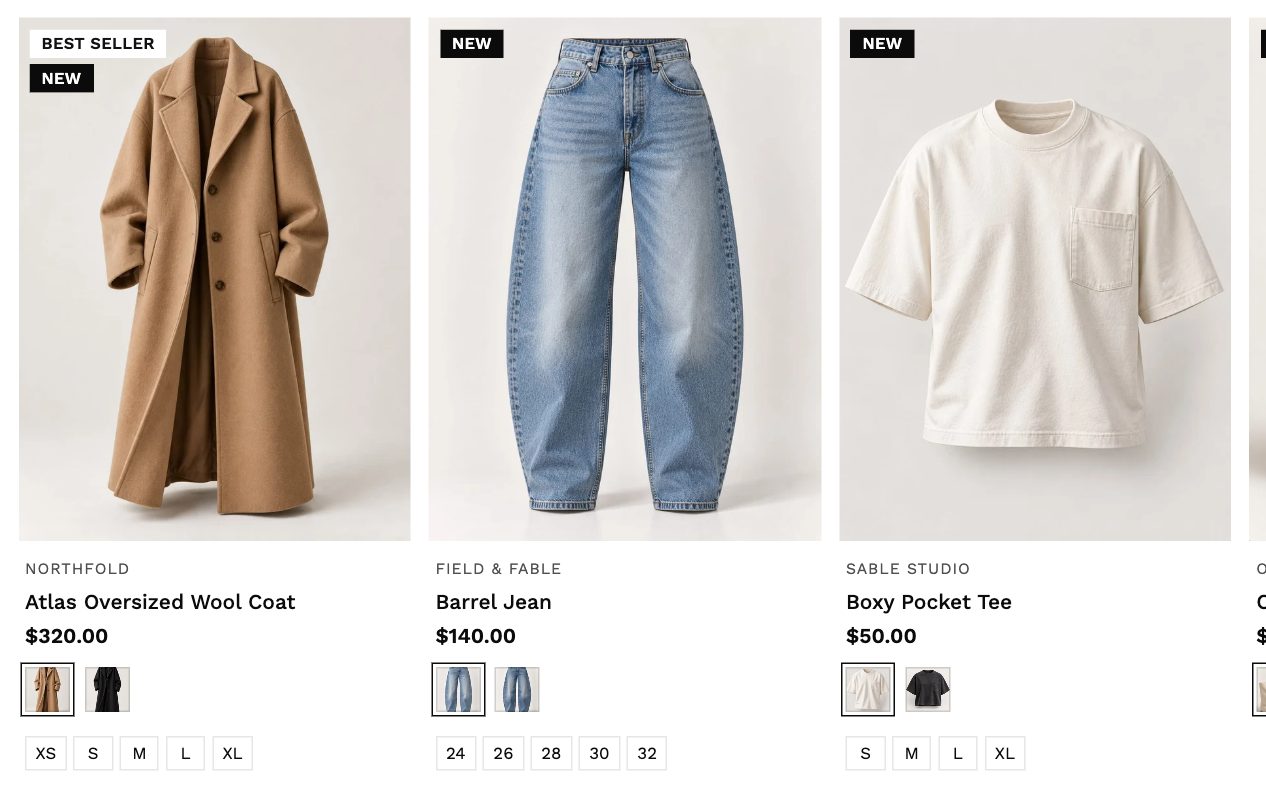
Turn badges on
Go to Theme settings → Product badges and turn on Enable product badges. Choose the position, shape and size, and how many badges a product can show at once.
Built-in badges
| Badge | When it shows | Options |
|---|---|---|
| Sold out | Every variant is out of stock | Background colour |
| Sale | The product has a compare-at price higher than its price | Label only, percentage off, amount off, or label and percentage; optional icon |
| New | The product was published within the number of days you set | Days, icon and colour |
Each badge has one background colour; the theme picks black or white text automatically so it stays readable.
Tag badges
Use up to three badges driven by product tags, for example Bestseller, Vegan or Limited.
- In Tag badge 1, turn on Show badge.
- Enter the Product tag, for example
best-seller. - Enter the Label shoppers see, for example Best seller, and choose an icon and colour.
- Add that tag to products in admin. The badge appears on that product's card everywhere in the store: collections, search, sliders and recommendations.
Fewer is better
One or two badges per product keeps cards clean. Set Maximum badges per product to 2.