

Feature guides
Collection filters
Let shoppers narrow a collection by product type, brand, colour, size, price and anything else you sell by. Filters are created in Shopify's free Search & Discovery app and styled by the theme.
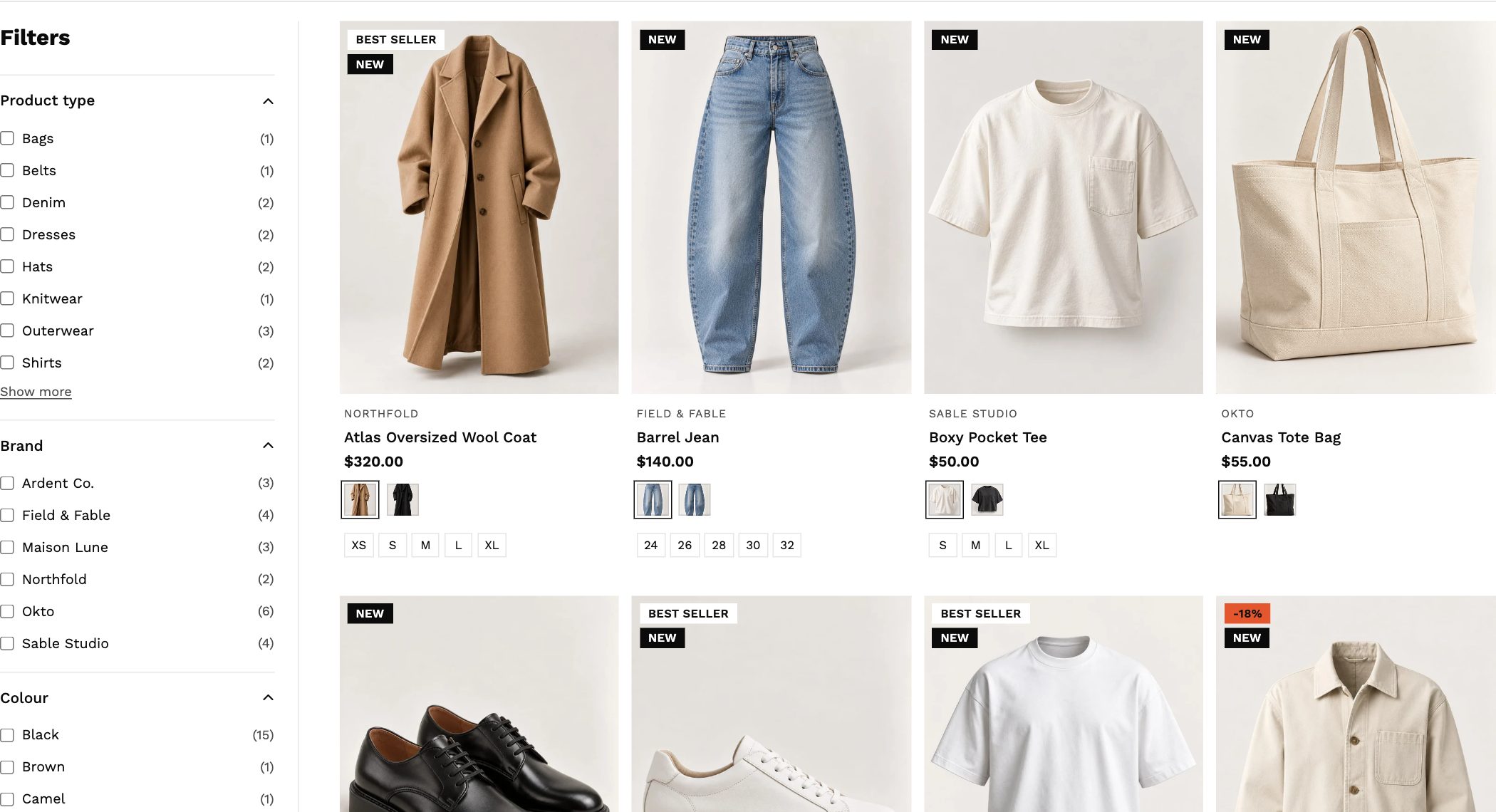
1. Install Search & Discovery
Install Shopify's free Search & Discovery app from the Shopify App Store. It manages filters, product pairings and search for every theme.
2. Add your filters
- Open Search & Discovery → Filters and click Add filter.
- Choose a source. Common filters:
- Availability and Price
- Product type and Vendor (brand)
- Variant options such as Colour and Size
- Tags, grouped under a label you choose (for example a Pet filter built from the tags dog and cat)
- Metafields you've added to products, such as material or skin type
- Drag filters into the order you want them to appear, and Save.
"Colour" and "Size" read better than "Option 1". For tag filters, rename the values too, for example the tag dog shown as Dog.
3. Style them in the theme
Open a collection in the theme editor, select the Collection section and look under Filters:
| Setting | What to choose |
|---|---|
| Layout style | Left sidebar keeps filters beside the products on desktop. Drawer hides them behind a Filter button for a cleaner page. On phones, filters always open in a drawer. |
| Price filter style | A slider or min / max boxes. |
| Color filter style | Color swatches show the colour itself (from the option value's swatch in admin, or its name); Checkboxes list the names. |
| Size filter style | Buttons look like the size picker on the product page. |
| Max visible options per group | Long lists collapse behind a Show more link. |
The sidebar stays beside the products as shoppers scroll. When the list of filters is taller than the screen, it scrolls along with the page until its last filter is in view, so every filter can be reached without an inner scrollbar.
Filters on the search page
The search results page uses the same filters and the same styles. Set them on the Search section.
Troubleshooting
- A filter doesn't show: filters with no matching products in that collection are hidden. Check the products have that option, tag or metafield.
- Colours show as grey circles: the colour name isn't a colour the browser recognises (for example "Oatmeal"). Set a swatch colour or image on the option value in the product's admin page, or switch Color filter style to Checkboxes.
- More than 25 filters: Shopify allows up to 25 filters per store.